
If you’ve been poking around GiveSignup’s event tools, you’ve probably come across two features with names that sound very similar names: Groups/Team and Fundraising Teams. Both involve teams. Both help bring people together around your event. But they’re actually built for pretty different things, and picking the right one (or knowing when you need both) can make a real difference in how your event runs.
In this blog we’ll break down the difference between each one, walk through how they work, and help figure out which fits your event — or whether you want both.
The Quick Answer
Groups/Teams are built around the race or event itself — great for competitive, relay, social, or organizational grouping of participants.
Fundraising teams are built around peer-to-peer fundraising — perfect for events where raising money is the main event, and where you want a friendly competition and a sense of community around donations.
Groups/Teams
Groups/Teams
What are Groups/Teams?
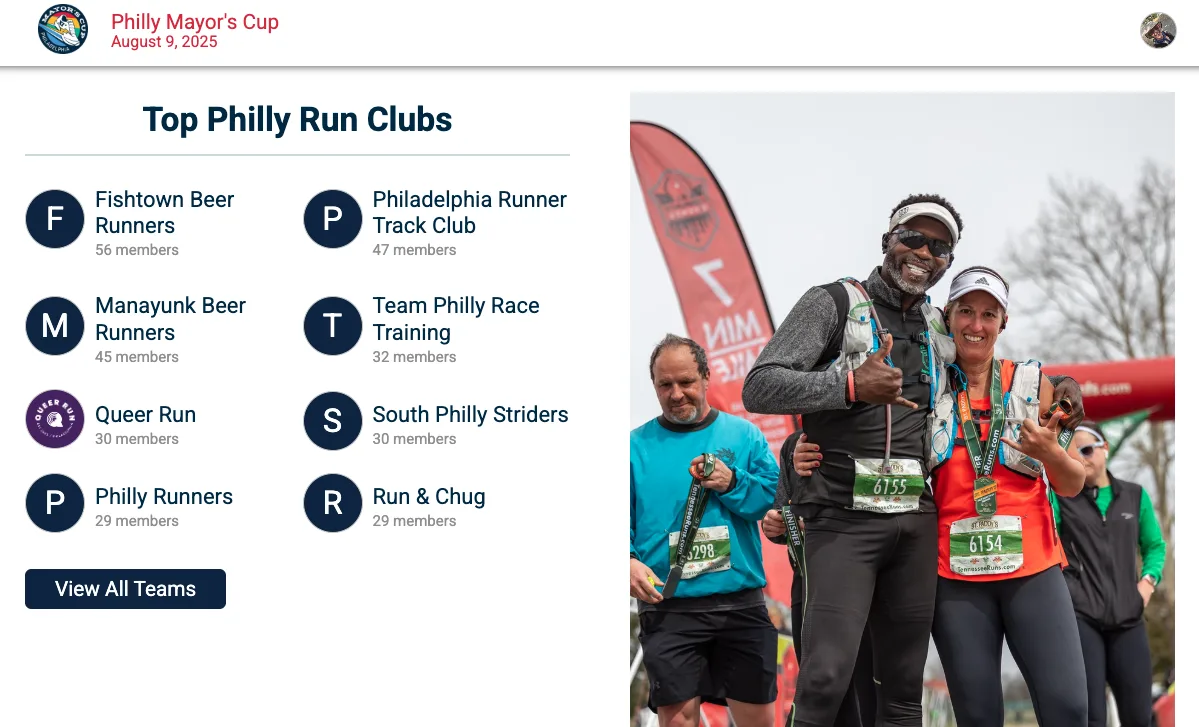
Groups/Teams is a widely used feature on GiveSignup (and RunSignup) — and it’s easy to see why. Nearly 30% of participants join a team when the option is available, and the average team gets around 7 members. That’s a lot of people bringing friends and more revenue for your event.
Here’s how it works: as the event organizer, you define one or more “Group Types” — think of these as categories your team falls into, not the teams themselves. From there, participants create or join individual groups within those types.
For example, your event wants to support school teams, church groups, or corporate squads. You would create a Group Type for each, and participants would pick the one that fit them.
Groups/Teams is all about the race experience. Running together, competing as a unit, or just showing up with your crew. It’s not donation-driven — it’s registration-driven.
Common Use Cases for Groups/Teams
- Relay teams — where each member run a leg of the race
- Social teams — friends and family registering and racing together
- Corporate, school, or club teams — organization group participation
- Competitive age-group teams — for scored team results or division-based competition
- Community group events — when registrants are required to belong to a group (like a school fun run)
Key Features
Flexible Group Type Setup
You can set up as many Group Types as you need, and each one can be tied to specific events within your registration. So a relay team Group Type might only apply to the 5K, while a social team Group Type is open to everyone.
Each Group Type also had a solid set of advanced settings you can dig into:
- Gender restrictions (all male, all female, or coed)
- Group size minimums and maximums
- Age range restrictions for members
- A cutoff date for team joining
- Guaranteed entrees for teams (useful when participants caps are set)
- The ability for group admins (captains) to add or remove members
Group Passwords
Want or need to keep your group exclusive? You can allow, require, or turn off group passwords entirely. When a password is required, anyone trying to join a group needs to know it first. Captains can update their password anytime from the participant profile.
Team Incentives
You can set up discounted registration pricing that kick in once a team hits a certain size — and GiveSignup will automatically issue refunds to anyone who already paid full price. It’s a built-in nudge for participants to recruit their friends.
Display Customization
You have a ton of control over how Groups/Teams show up to your participants.
- Rename the feature entirely — call it “Relay Teams”, “Crews”, whatever fits your event’s vibe
- Swap “Administrators” for “Captains” or any other title like you
- Show one tab for all Group Types or give us it’s own tab on your race page
Reporting and Communication
On the backend, you’ve got all the reporting you need:
- Downloadable reports with all your groups and every team member’s contact info
- A dedicated team captain report
- Auto-generated email lists for all team members and captains — so communicating with those groups is a breeze
Requiring Teams
By default, joining a team is totally optional. But if your event structure requires it — like a school fun run where every student needs to be tied to a classroom — you can flip it to required. Have multiple classrooms for each grade? You can use umbrella teams.
How to Set Up Groups/Teams
Navigate to your Race Dashboard >> Participants >> Groups/teams >> Setup. Click the green Add Group Type button, then work through your settings from there.
Check out this step-by-step guide for more guidance.
Fundraising Teams
What are Fundraising Teams?
Fundraising Teams are part of GiveSignup’s peer-to-peer fundraising toolkit. While Groups/Teams are about the race, Fundraising Teams are about the cause. They’re designed for events where participants are out there actively fundraising and where the energy of a team can help them raise a whole lot more.
Each Fundraising Team is made up of individual fundraisers working toward a shared goal. Every team member still has their own personal fundraising page with their own story and their own donors — but their totals roll up to the team.
One big thing worth knowing: Fundraising Teams aren’t just for registered participants. Non-participants can join a fundraising team too, which means your fundraising each can extend well beyond the people who actually registered for your event.
How Fundraising Teams Relate to Individual Fundraisers
Fundraising Teams don’t replace individual fundraisers — they build on top of top of them. Here’s a basic setup:
- Individuals fundraise as usual, sharing their personal pages and collecting donations
- Every donation to an individual also counts toward the team goal
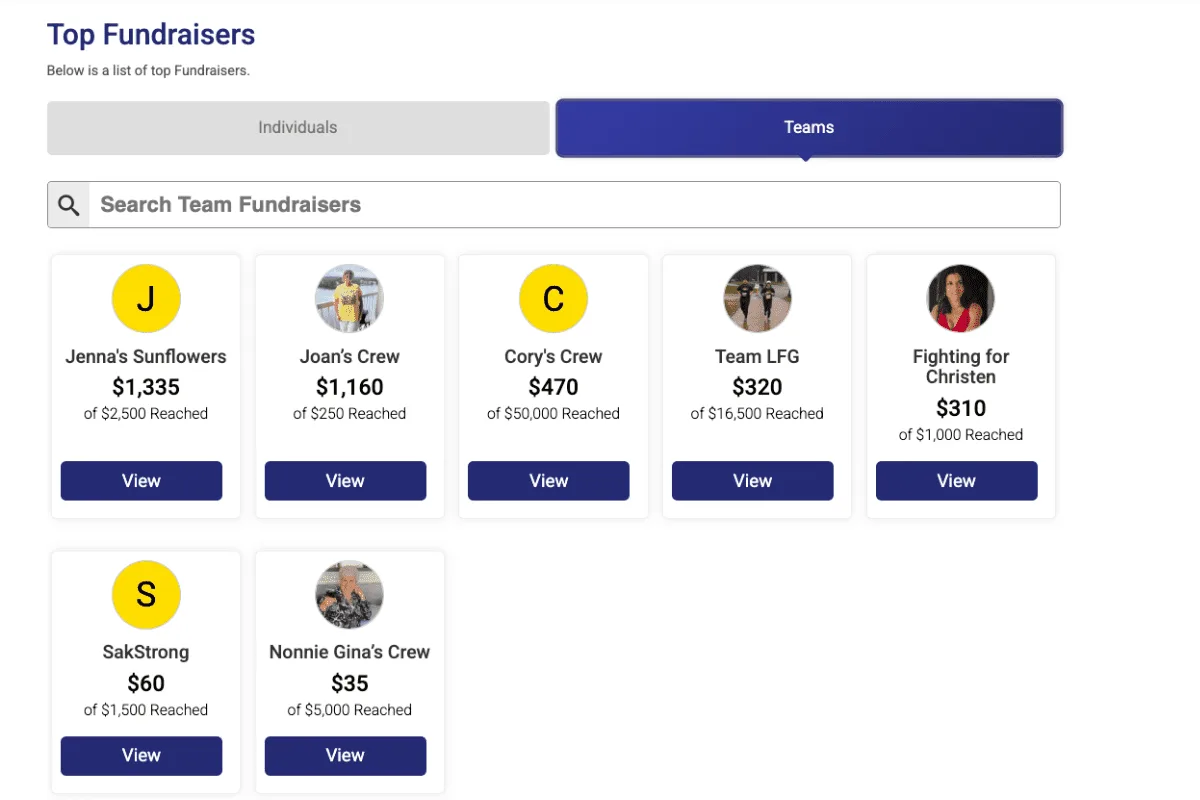
- Teams have their own pages, shared goals, and leaderboard positions
- Team captains can rally members, track progress, and keep the momentum going
Common Use Cases for Fundraising Teams
- School classrooms — each classroom forms a team, students and parents fundraise on its behalf
- Corporate teams — colleagues fundraise together as a company or department (another great option to use umbrella teams!)
- Family and social groups — fundraising in memory of a loved one or for a cause close to home
- Club or organization teams — running clubs, faith groups, or civic organizations getting their members involved
- Multi-location events — using umbrella fundraising teams to group participants by location or chapter
Key Features
Flexible Team Creation and Joining
Just like Groups/Teams, there are lots of options for how the team setup works for your participants:
- Allow or require fundraisers to create or join a team during or after registration
- Turn off team creation but still let participants join pre-built team (handy for school events where you’re setting up the classroom teams yourself)
- Add password protection so team captains can control who can join
Custom Team Pages and Default Content
Every fundraising team gets its own page. You can set a default fundraising message and suggested goal so new teams aren’t starting from scratch — and captains can customize both to make it their own. You can also create Fundraiser Types (“Corporate” or “Family & Social”) to add some structure if you need it.
Team Captain Tools
Team captains have their own set of tools to keep things running:
- Access to team roster reports (you decide what data captains can see)
- Support for multiple captains, so leadership can be shared
- Custom questions you can ask captains during team setup, separate from your standard registration questions
Leaderboards, Milestone, and Gamification
Stack Fundraising Teams with GiveSignup’s gamification tools and things really start to click.
- Team and individual fundraising leaderboards right on your event website
- Milestones and badges for teams and individuals (for amounts raised, number of donors, and more!)
- Automated fundraising rewards — hit a threshold, earn a discount, refund, or an exclusive swag item
- Social sharing tools and auto-join team URLs that make it easy to recruit
Bring Back my Fundraising Team
For repeat events, this feature is a game-changer. When Bring Back my Fundraising Team is turned on, returning captains are prompted to re-form their team from the previous year. Once they complete registration, all their past members get an email invitation to rejoin. No starting from zero — just picking up where you left off.
Umbrella Fundraising Teams
Running a bigger event with multiple chapter, schools, or locations? Umbrella Fundraising Teams let you nest individual teams under a parent structure, so you can group participants by location or grade or organization while still letting the individual and team competition play out.
How to Set Up Fundraising Teams
Navigate to your Race Dashboard >> Fundraising >> Team Fundraisers to get started.
From there, you’ll walk through:
- General Settings — control team creation, joining, requirements, and defaults
- Customizations and Display Options — rename the terms, add instructions, create team types, and more
- Fundraiser Questions — add custom questions
- Team Fundraiser Captain Settings — configure what data captains can access
- Team Fundraiser Milestones — configure badges to reward teams
- Bring Back Fundraiser Settings — simplify setup repeat fundraisers
- Umbrella Team Settings — configure for bigger events
- Slideshow Settings — add images for teams to showoff
- Advanced Settings — including the option to disable team fundraisers entirely if you ever need to
Check out this step-by-step guide for more guidance.
Please note: You will need to enable Donations and Individual Fundraisers before you can turn on Fundraising Teams.
Key Differences
Still unsure which one you need? Here’s a quick side-by-side:
Groups/Teams
- Primary purpose: about the race/event experience
- Who can participate: require registration
- Pricing tools: support group-based registration discounts
- Competitive element: compete in the race (relays, age group scoring, etc.)
- Dependencies: can be turned on by itself
Fundraising Teams
- Primary purpose: about peer-to-peer fundraising
- Who can participate: can include non-participants
- Pricing tools: tie into fundraising rewards and refunds
- Competitive element: compete on donation leaderboards
- Dependencies: need Donations and Individual Fundraisers to be set up first
Can You Used Both at the Same Time?
Yes! And for a lot of fundraising events, using both is actually the move.
For example, you might use Groups/Teams to handle relay team logistics and pricing while Fundraising Teams powers your peer-to-peer campaign. GiveSignup even has a setting to automatically link race Group/Team captains to a Fundraising Team — so both structures stay in sync without anyone having to do it twice.
This combo works especially well for events that need the structure of Groups/Teams (specific pricing, size limits, gender requirements) AND want the fundraising horsepower of Fundraising Teams.
Prefer to see how it all works rather than read about it? Watch Kevin and Andrew explain it.
Which One is Right for Your Event?
If your event is race or active event and you want participants to connect, compete, or just show up together — Groups/Teams is your tool.
If peer-to-peer fundraising is at the heart of what you do and you want to channel the power of teams to raise more — Fundraising Teams is your tool.
And if both sound like you? Use both. GiveSignup is built to handle it, and running them together unlocks the best of each.
Ready to get started? Create your event or schedule a call with our team and we can help you figure out the right setup for your event.